
Let the notetaker sit in on your screening calls
Ask the bot to join any meeting on your calendar. It records, writes the summary, and adds what the candidate actually told you to their profile — each fact labelled, so you always know where it came from.
Open your Meetings page
Half of a screening call never reaches the ATS
A 30-minute intro call is the densest information you will ever get about a candidate. It is also the moment you are least able to write anything down. You are listening, probing, watching the clock, deciding what to ask next.
So what gets typed is a fragment. The notice period they mentioned at minute 24 lives in your head until it doesn't. The certification they picked up last year never makes it onto the profile, and the hiring manager reading that profile next week has no idea the conversation happened.
Marmend's AI notetaker is there to close that gap. You run the call; it handles the record-keeping.
Adding the bot to a meeting
Everything happens on the Meetings page — click it in the left navigation, next to Calendar. It works on desktop and mobile, and everyone in your organization has it.
Meetings are laid out as a week-by-week feed with today highlighted, and each meeting appears as a card anchored to its calendar event, so you see the title, time and participants at a glance. Scroll up to load earlier weeks.
- Find the upcoming meeting on the feed.
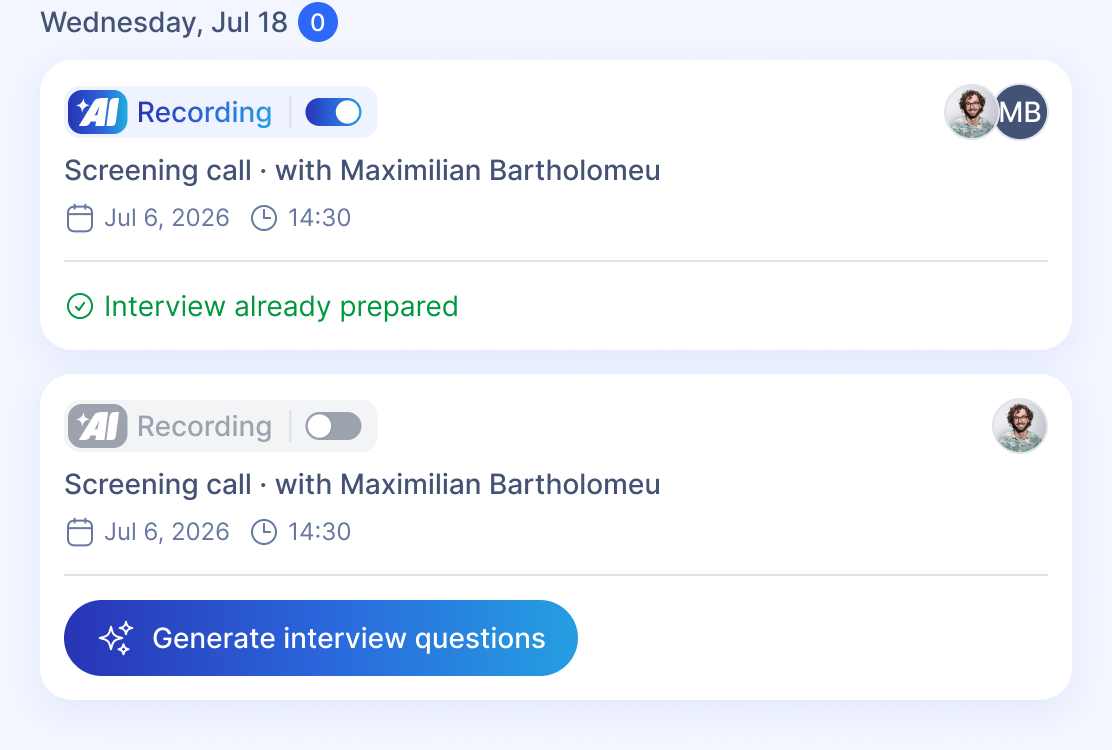
- Use the notetaker control on the card to request a recording bot.
- That's it. The bot joins the call at the scheduled time and records it.
While the meeting is being recorded, the page shows a live footer with the recording status — and you can stop the recording from there at any point. When it's over, a summary appears on the card.
One thing worth knowing: your Meetings page shows the meetings you organized or were invited to as a calendar participant. If a call you know happened isn't there, the calendar invite is the place to look.
Or stop requesting it one call at a time
If you screen all week, turn on auto-scheduling and the bot shows up on its own. The system checks your calendar every minute and schedules bots up to seven days ahead, and you get a notification each time one is added.
- For yourself: Settings → Personal Preferences → Meeting Bots → toggle Auto-Schedule Meeting Bots on, then Save.
- For the whole company: an admin can go to Administration → Company Settings → the Meeting Bots tab and enable auto-scheduling for all employees. Individuals can still opt out in their own preferences.
A meeting is eligible when it runs at least 15 minutes, has two or more attendees, falls within the next seven days, carries a Zoom, Google Meet or Microsoft Teams link, and you've accepted it or marked it tentative.
Auto-scheduling deliberately skips personal events with no other attendees, all-day events, past meetings, meetings you declined, anything without a video link, and recurring series — only individual instances get a bot.
You can always remove a single scheduled bot without turning the feature off. And for genuinely sensitive conversations, manual scheduling is the better habit: recording is a decision, not a default. With candidates and external participants, ask first.
After the call: a summary, not a wall of transcript
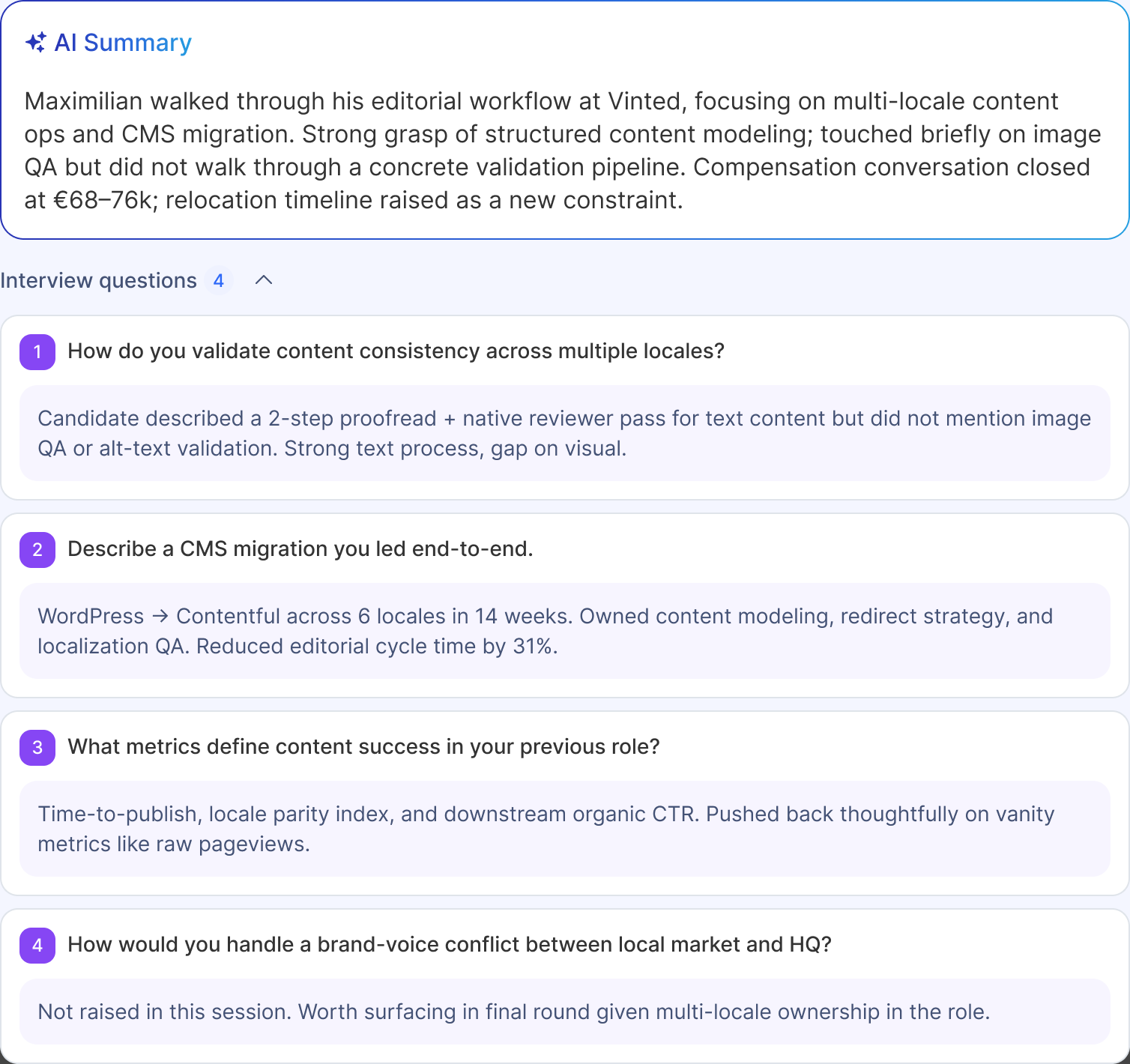
Once the recording is processed, Meeting Intelligence matches it to the candidate and produces a summary — usually within a few minutes of the call ending. You'll find it in the Past meetings section of the candidate's Meetings tab, and on the meeting card itself.
Each summary gives you a written recap organized around the interview agenda, plus highlights — the key takeaways at a glance.
Screening and intro calls get something more opinionated: the summary reads like a second recruiter's opinion on the call, covering overall impression, fit for the role, concerns, and an explicit recommendation shown as a coloured verdict chip — advance, hold or decline. Technical, panel and final rounds get a factual agenda-based recap instead, with no verdict.
If you'd rather ask than read, open the candidate's AI Chat tab and ask in plain language: what did they say about their notice period? The assistant answers from the summaries first and reads deeper only when it needs to.
Then it fills in the profile
This is the part that quietly saves the most time. Alongside the summary, Meeting Intelligence reads the transcript for concrete candidate facts — skills, languages, work experience, education, certifications, and details like salary expectation, notice period, location and timezone.
Anything genuinely new is added to the candidate's profile and marked with an amber from interview badge, so a month later you can still tell which facts came from the conversation and which came from the CV.
The rules around that are deliberately conservative:
- Information parsed from the CV or entered by a recruiter is never overwritten.
- New items are added only when they aren't already on file.
- Empty fields are filled in only when they were blank.
- If the call surfaced something wrong, remove it inline — the provenance badge makes it easy to spot what to check.
The net effect is that a profile gets richer after every conversation instead of drifting out of date, and nobody has to remember to go back and type it up.
What it won't do
The raw transcript is never shown — not on the Meetings tab, not in chat. The assistant reads it internally and replies in plain language, which keeps conversations readable and keeps unedited candidate speech out of circulation.
Summaries are linked to calendar attendees automatically, so a hiring manager who joined the interview sees it on their own Meetings page without anyone sharing a link. Beyond that, the meeting owner controls access: they can grant and revoke it at any time, and people a summary was shared with can never re-share it.
Meeting Intelligence is enabled per organization. If you don't see the Meetings tab on a candidate, your administrator hasn't turned it on yet.

Questions we get
Do I need to paste a meeting link anywhere?
No. The bot works from the calendar event behind the meeting card, so as long as the event carries a Zoom, Google Meet or Microsoft Teams link, requesting the notetaker is the only step.
Can I read the full transcript?
No — only the processed summary and highlights are shown, clearly marked as generated by AI. This keeps meeting content readable and avoids exposing raw conversation.
Will the call overwrite what's already on the profile?
No. Existing CV-parsed and recruiter-entered information is never overwritten. New items are added only when they aren't already on file, and blank fields are filled in only when they were blank.
A summary was shared with me — can I pass it on to a colleague?
No. Only the meeting owner can share a summary. Ask them to add your colleague to the access list.
The bot didn't join. What happened?
Check that the event had a valid video conference link, two or more attendees, and ran at least 15 minutes, then look at the bot's status on the Meetings page. A failed bot also sends a notification with the error details.
Can I get interview prep as well as the summary?
Yes. When an interview slot is confirmed in Marmend, Meeting Intelligence drafts a prep checklist — questions prioritized as must, should or nice to ask, talking points, and risk flags — grounded in the gap between the CV and the vacancy requirements. The candidate needs to be assigned to a vacancy first.
Try it on your next screening call
Open the Meetings page, find the call on this week's feed, and ask the notetaker to join.
Open Meetings